Console and Diagnostics
Console is Automata Lab's single durable message view for application, validation, file, CSV, Chart, Solver, server, and Simulator activity. It replaces separate diagnostic and server logs and keeps operation outcomes available after a dialog closes or the active page changes.
Show or hide Console through View → Console. In the narrow layout, the Console region control selects it and Model or Detail returns to another region. Visibility and panel height are application preferences; entries are volatile and are not written into project files.
Message Severities
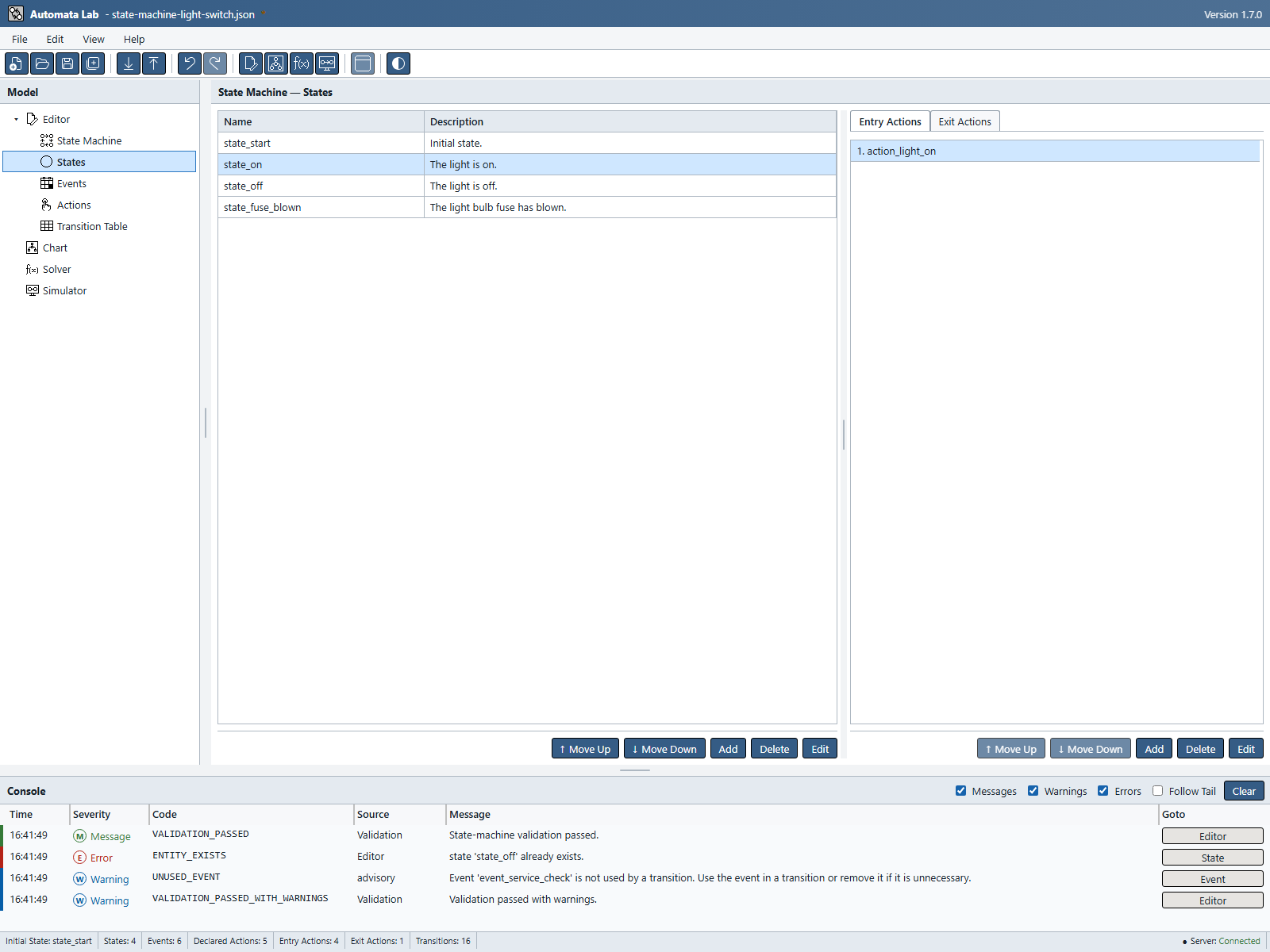
Every row contains local time in hh:mm:ss, severity, a stable code, source, concise text, and an optional navigation button. A sticky header names the columns Time, Severity, Code, Source, Message, and Goto. Drag a grip between column headers to resize the preceding column. Code starts at 250px. Keyboard users can focus a grip and use Left/Right (Shift for larger steps), or Home/End for the minimum/maximum. Double-click a grip to restore its default. Message fills available space until resized. Widths last for the current session; Goto buttons remain fixed at 128px.
Goto buttons name the destination (for example, State, Event, or Action) and share a fixed width. They open the relevant page without changing the model. Where the entry has a usable entity reference, the affected state, event, action, or transition is selected, focused, and scrolled into view. Missing or stale references open the page without changing its current selection. References become stale after the entity is renamed or deleted, the document is replaced, or Solver replaces the model. Recreating a matching name does not revive an old reference. Header grips use dark gray in Dark mode and the inverted light gray in Light mode; forced colors uses system colors. Rows use an open treatment without horizontal separators or cell grid lines.
| Severity | Normal accent | Use |
|---|---|---|
| Message | Green, with M and Message text | Successful operations and ordinary lifecycle information. |
| Warning | Blue, with W and Warning text | Recoverable limitations, incomplete work, or conditions needing review. |
| Error | Red, with E and Error text | Failed operations, invalid input, or unavailable required services. |
Color is supplemental. Symbols, severity text, codes, sources, and message text remain available in both themes and forced-colors mode.
Inline context-action buttons use Application Settings → Appearance → Application Colors → Console Message Buttons, which defaults to a lighter theme-specific Gray. Enable Match Console Message Color beneath that dropdown to use the nearest corresponding Application Buttons palette color: Green for Message, Blue for Warning, and Red for Error. Matched buttons use the palette's white text/icons and darker hover/pressed shades in both themes. This option defaults unchecked so destination buttons start Gray. While checked, the dropdown is disabled and retains its chosen color for when matching is turned off. The title-bar Clear button uses Application Buttons, which defaults to Blue. These settings leave severity accents, message text, filtering, and navigation behavior unchanged. Row hover and focus use a theme surface that keeps severity labels readable. Manual choices use the Application Buttons palette, including dark text on Yellow/White in both themes. In Light mode, Console Gray selects the gray shades and White selects the near-white shades. Destination buttons share the standard 1-pixel black button borders in both themes, including hover and pressed states; forced colors uses system colors.
Figure UG-34 shows how codes and severity labels distinguish a successful operation, a rejected edit, and an unused-event warning.

Navigating to an Entity
Choose State, Event, Action, or Transition Table in Goto. If the message still refers to an entity in the current document, its row becomes selected and receives keyboard focus, even when it starts outside the visible table area. Selecting the same destination again brings that row back into view. For example, a rejected rename of state_on selects state_on, not the first state.
A message from an older document, a removed or renamed entity, or an operation without a captured reference still opens its destination page. It does not request a new selection. Reading an old message never restores or modifies the old entity.

Filtering Messages
The title bar contains Messages, Warnings, and Errors checkboxes. Turn a filter off to hide that severity and turn it on to show retained matching rows again. Filtering never deletes history or prevents new entries from being recorded. In narrow windows, scroll horizontally to reach all six columns, including Goto. Copying a focused row includes its code and source.
Follow Tail defaults on and keeps the newest visible row in view. Turn it off before reviewing or copying earlier entries so a new message does not move the view. The same preference is available under Application Settings → General → Console. It is independent of Simulator Follow Trace Tail.
Within the Console grid, use Up and Down Arrow to move one row, Home and End to reach the first or last visible entry, and Ctrl+C or Command+C to copy the focused row as tab-separated time, severity, code, source, and text. Enter or Space activates an available context action.
Clearing the Console
Choose Clear to remove the retained displayed history. Clearing does not change the project, undo or redo a command, cancel a worker, disconnect the server, close a session, or resolve the condition that produced a diagnostic.
Filters and Clear affect only the current in-memory Console. Reload begins a new Console with SHELL_READY and any preference-recovery warning detected during startup.
Validation Diagnostics
Validation diagnostics identify the affected path or entity and a useful remedy. Blocking structural and integrity errors leave the current operation unchanged. Completeness warnings for zero states or a missing initial state allow the specific Open, Save, and Print workflows described elsewhere but continue to block compilation, Push, and simulation.
Use a row's context action when present to navigate to the relevant Editor, Chart, Solver, or Simulator page. Critical errors may also open a modal acknowledgement; the corresponding Console entry remains after dismissal.
Validation is transactional. A failed rename, deletion plan, CSV import, Open, Pull, Push, Solver Apply, or Chart command does not apply a valid prefix before reporting later errors.
File and CSV Diagnostics
File diagnostics distinguish parsing, identity, schema, version, reference, capacity, read, write, and browser-capability failures. Common application codes include:
| Code | Meaning |
|---|---|
FILE_OPENED | A project replaced the client document successfully. |
FILE_SAVED | Canonical JSON was written or downloaded successfully. |
FILE_BACKUP_SKIPPED | Save Backup was enabled, but the adapter could not create a silent sibling backup. |
JSON_MALFORMED | The input is not valid strict JSON. |
DUPLICATE_JSON_MEMBER | One JSON object repeats a member name. |
FILE_VERSION_UNSUPPORTED | The JSON file contract is not supported. |
CSV_IMPORT_COMPLETED | One validated collection import committed atomically. |
CSV_FILE_TOO_LARGE | The CSV exceeds the 5 MiB input limit. |
CSV_READ_FAILED or CSV_WRITE_FAILED | The browser adapter could not complete I/O. |
CSV errors preserve row order in their diagnostics. Transition Table reference failures group missing states separately from missing events, while the modal summary keeps those bounded lists selectable and copyable.
Server and Simulator Diagnostics
Server entries report connection, readiness, worker instance, hosted revision, conflicts, Pull or Push outcomes, and recovery without logging complete hosted documents or protocol payloads. Useful codes include SERVER_CONNECTED, SERVER_DISCONNECTED, HOSTED_MODEL_PULLED, HOSTED_MODEL_PUSHED, and HOSTED_MODEL_CONFLICT.
Simulator entries identify session creation, reset, closure, staleness, unknown events, missing transitions, request failure, and worker recreation. UNKNOWN_EVENT and NO_TRANSITION are warnings: the event is consumed, the current state is retained, no transition action is emitted, and Run continues. Pending initial entry actions are emitted once before the first event after session creation or Reset, including when that event produces a warning. Restarting the built-in worker produces a new instance and invalidates prior sessions; Console records the recovery rather than implying those sessions survived.
Solver Diagnostics
Solver diagnostics cover token normalization, contradictory observations, capacity, cancellation, worker failure, candidate completion, replay verification, staleness, and Apply. A failure or cancellation never mutates the project or partially publishes a candidate.
Typical hard-evidence codes include MULTIPLE_STATES_IN_INTERVAL, DETERMINISM_CONFLICT, INITIAL_STATE_CONFLICT, and ACTION_WORD_CONFLICT. NO_OBSERVATIONS warns that a one-state candidate has no supplied behavioral evidence; it does not block inference. SOLVER_CANCELLED and SOLVER_FAILURE distinguish an intentional cancellation from a failed worker or job.
Candidate inference reports contain model-specific justification and replay coverage; Console provides the bounded operation summary and navigation rather than duplicating the complete report.
Diagnostic Limits
Console retains the newest 1,000 entries and evicts the oldest first. Large lists are progressively rendered so retained history does not require every row to be mounted at once.
One diagnostic publication contributes at most 100 individual entries, followed when necessary by one DIAGNOSTICS_TRUNCATED omission summary. This is a display and logging bound, not permission to apply the first 100 items of a failed operation; the underlying command remains atomic.
Codes, identifiers, and source names are limited to 256 Unicode code points, timestamps to 64, and message text and context labels to 4,096. Truncation includes its visible marker within the limit. Complete models, Solver observations, event buffers, hosted documents, sessions, and traces are never copied into Console entries.
Previous: Accessibility
Next: Troubleshooting