Simulator
Simulator runs the model hosted by the built-in server in a revision-pinned session. It does not execute the client authoring project directly, so editing, opening, saving, or applying a Solver candidate cannot silently change a running session.
Simulator Overview
Select Simulator in the Model tree. The page is titled State Transducer Simulator and contains four working regions:
| Region | Purpose |
|---|---|
| Event Sequences | Manage named event sequences saved in the project. |
| Events | Edit one event per line and track the consumed or next buffer position. |
| Transition Trace | Inspect State, Event, Next State, and Outcome rows in execution order. |
| Action Trace | Inspect Action, State, and Entry or Exit schedule rows in emission order. |
The bottom action panel contains Start Session or Close Session, followed by Run, Step, and Reset. Current state, pinned revision, and staleness appear in the status bar and Console instead of a duplicate summary on the page. Splitters resize the sequence, event, and trace regions and remain keyboard operable.
Hosting a Model
Simulation requires a connected, ready server with a complete hosted model. A complete model has at least one state, a declared initial state, valid references, and no other structural or semantic error.
Use File → Push Model to Server to host the current complete client project explicitly. Push validates and compiles the project before atomically replacing the hosted snapshot. It does not Save the JSON project or mark local authoring work clean.
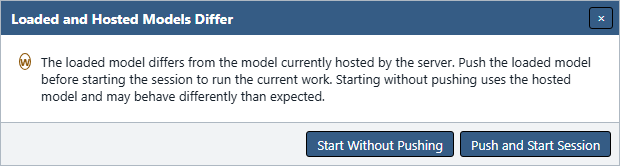
You can also choose Start Session and let Automata Lab compare the loaded model's semantic revision with the hosted revision. When they differ, Loaded and Hosted Models Differ offers:
- Push and Start Session, which must complete a successful conditional Push before creating the session; or
- Start Without Pushing, which runs the current hosted model and records a Console warning that it may differ from the loaded project.
Dismiss the dialog to cancel session creation. Chart geometry and saved Solver or Simulator sequences do not create a false mismatch because they do not change runtime semantics.
Figure UG-21 shows the decision that prevents a session from silently running a different model than you intended.
Creating Event Sequences
The Event Sequences pane stores named sequence records in the project. Use Move Up, Move Down, Add, Delete, and Edit to manage them. Add and Edit accept a required unique Name and optional Description. Each completed operation is one undoable document command.
Select a sequence to edit its ordered events. The Editor accepts one event name per line through typing or paste. Use Add beneath Events to choose a declared event in the Add Event dialog. Move Up, Move Down, and Delete operate on the selected Buffer Position row. To change an existing event name, edit its line in the text editor. Direct text also lets you test undeclared input deliberately.
When the editor commits, Automata Lab removes blank lines and trims surrounding whitespace. It does not reorder, deduplicate, or change case. Runtime matching is exact and case-sensitive.
Running a Sequence
Start a session, select or enter a sequence, and choose Run. The first Run submits a cleaned immutable copy of the complete event buffer. Later text edits cannot race the worker request already in progress.
For each consumed event, the runtime:
- Finds the transition for the current state and event, if one exists.
- Emits the source state's exit actions in order.
- Changes to the destination state.
- Emits the destination state's entry actions in order.
- Appends the corresponding transition and action trace rows.
A self-transition uses the same exit-then-entry order. When the buffer is exhausted without terminal stopping, the session remains in its current state. Running another sequence continues from that state rather than automatically returning to the initial state.
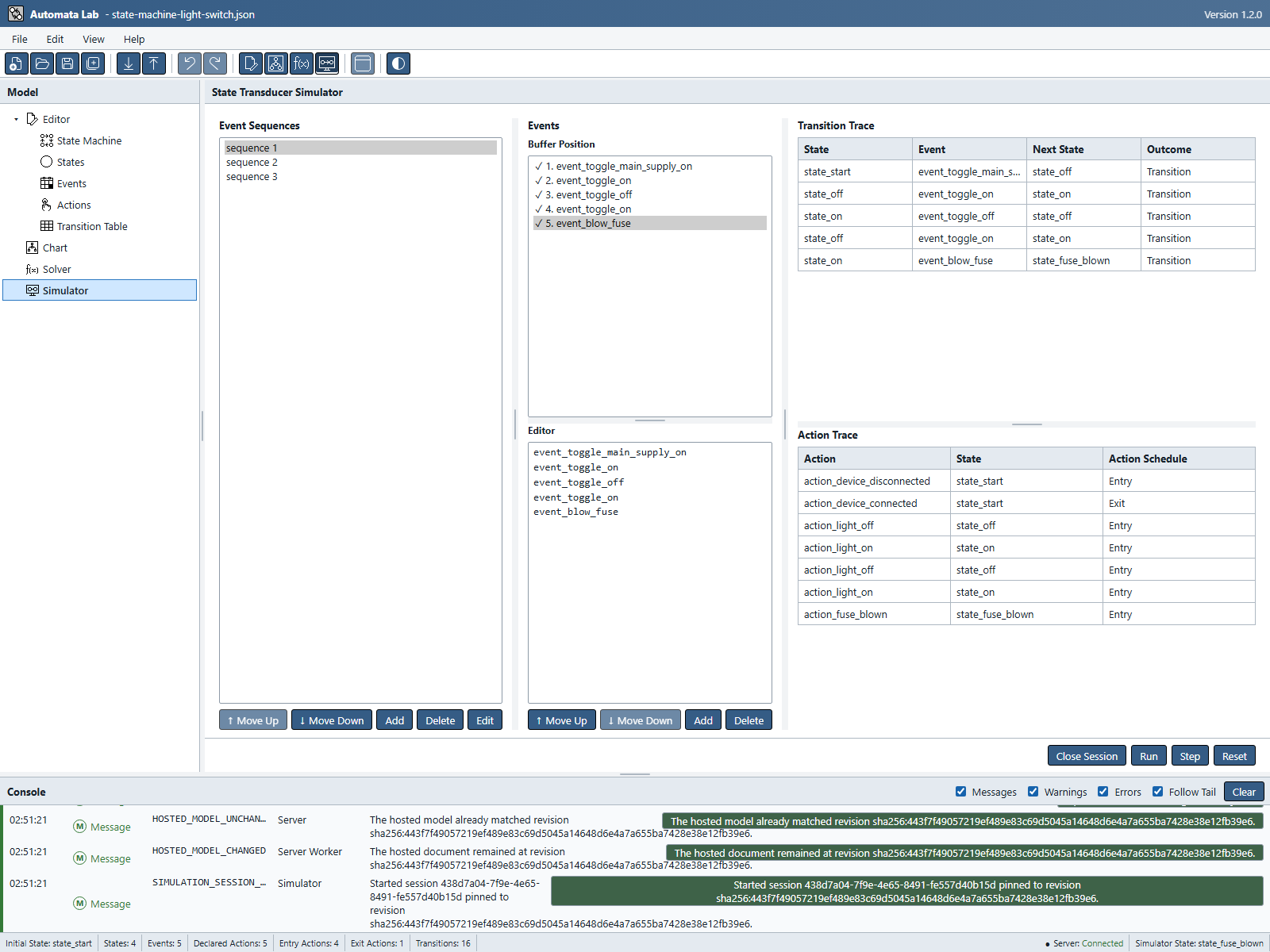
After the first Step shown in Figure UG-19, choose Run to process the remaining events. Figure UG-20 shows the completed buffer and retained traces.
Terminal States
Enable Application Settings → Simulator → Model Parameters → Enable Terminal States, then start or reset a session. The execution captures that choice; changing Settings later does not alter it. The hosted model supplies the terminal flags, so push local flag edits before starting a new session.
On terminal entry, the runtime completes all destination entry actions and the transition trace, then stops before the next event. No terminal exit action runs. The buffer retains its unconsumed suffix and both traces remain inspectable. Console reports TERMINAL_STATE_REACHED once per execution, and the status bar gives the reason. Run and Step stay disabled until Reset or a new session; selecting another sequence cannot resume it.
If the initial state is terminal, Start Session and Reset remain silent. The first Run or Step emits its entry actions once and stops with zero events consumed, even without a selected sequence or with an empty buffer. With the preference disabled, terminal states behave like other states, including outgoing and self-transitions. Reset captures the latest applied preference but retains the session's pinned model; Close and Start Session are required to use a newer hosted revision.
Stepping Through Events
Choose Step to consume at most the next unconsumed event. The Buffer Position list marks consumed rows and the next position separately from the editable text. After one or more Steps, Run submits only the unconsumed suffix and continues from the session's retained current state.
Run, Step, and Reset are temporarily disabled while a request is in flight. They also remain disabled when the server is not connected and ready, no hosted revision exists, the loaded project has a structural or semantic error, or no usable session exists. The controls expose the actionable unmet condition.
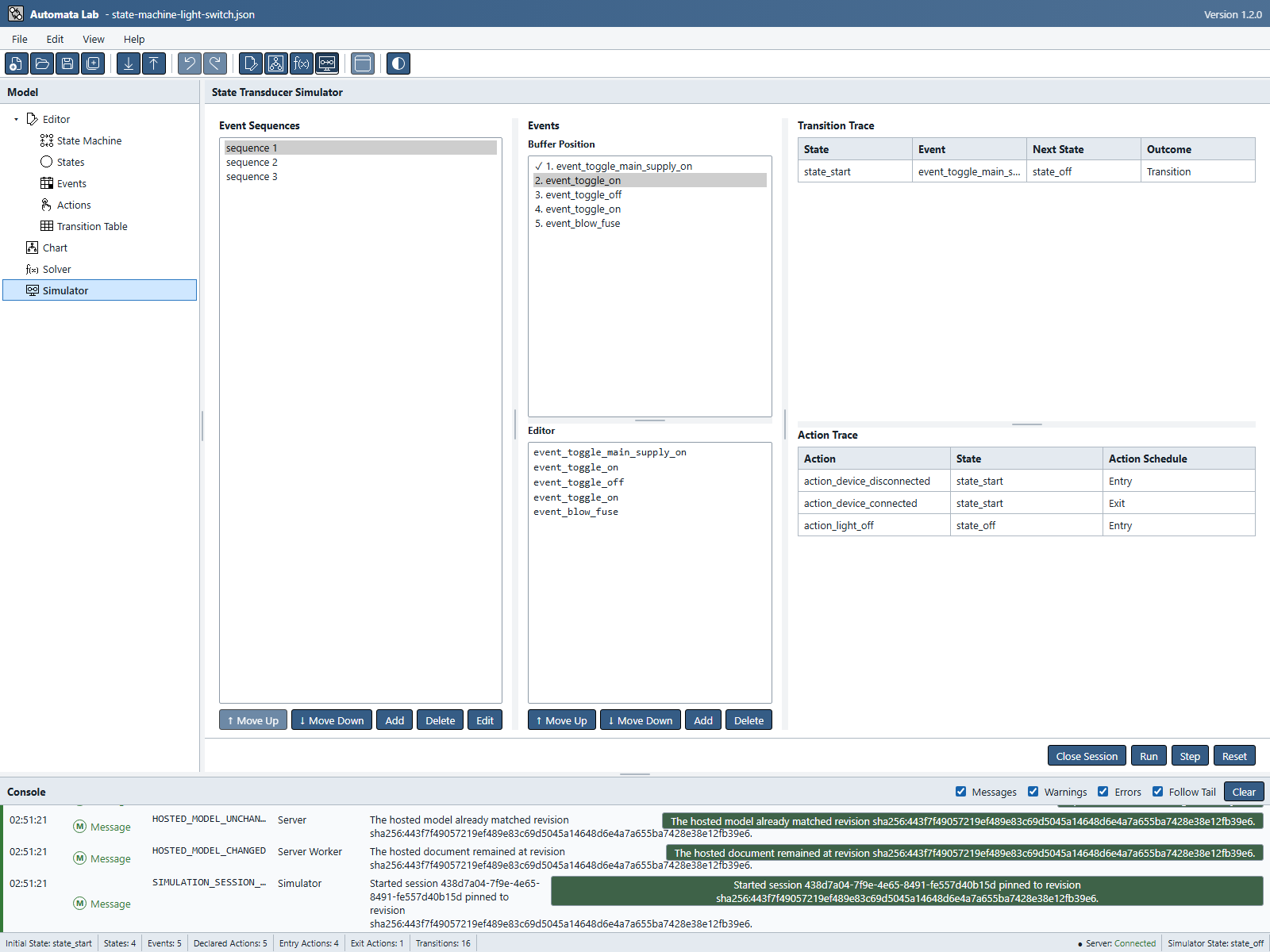
Figure UG-19 shows the first Step of sequence 1 in a fresh light-switch session. The status bar now reports state_off.
Resetting a Session
Choose Reset to clear both trace views, select the pinned model's initial state, and mark its initial entry actions as pending. Reset itself emits no actions.
The first Run or Step after Reset emits the initial state's entry actions exactly once. If that command consumes an event, those initial actions appear before the event's transition actions. Reset stays on the same immutable pinned revision; it does not update the session to a newer hosted model.
Compare the action order in the first-step screenshot. To recognize a session pinned to an older hosted revision, see Figure UG-22.
Transition Trace
Transition Trace records one row for every consumed event. Its columns show the state before dispatch, the submitted event, the next state, and the outcome. Rows remain in execution order across Run and Step commands until Reset or session closure clears them.
The table scrolls over retained history and renders only its visible rows, so large traces remain usable. Application Settings → Simulator → Traces contains Follow Trace Tail, enabled by default, for both trace tables. While enabled, each table follows new rows when at its end. Scrolling away pauses that table, and returning to the end resumes it. Turning the preference off prevents automatic scrolling; turning it back on while reading older rows preserves that position until you return to the end. This preference is independent of Console Follow Tail.
Trace retention is bounded at 50,000 entries, and Console discloses truncation instead of presenting an incomplete trace as complete. The scrolling preference does not change execution or retention.
Action Trace
Action Trace records every emitted action in order. Each row identifies the action, the state whose mapping produced it, and the Action Schedule value Entry or Exit.
Repeated action assignments produce repeated rows. A transition reports all source Exit rows before destination Entry rows. Initial entry actions appear once after session creation or Reset, on the first Run or Step rather than at reset time.
Unknown Events and Missing Transitions
An event can have either of these non-fatal outcomes:
- An unknown event is not declared in the hosted model.
- A missing transition is a declared event with no transition from the current state.
In both cases, Simulator consumes the event, keeps the current state, emits no transition actions, appends the trace outcome, and writes a warning to Console. Run continues with later events instead of aborting the buffer. On the first Run or Step after session creation or Reset, pending initial entry actions still appear before that event is checked.
Saved Simulator Sequences
Saved sequences, names, descriptions, order, and event order are part of the client project. Save writes them to the Automata Lab JSON file, and Push/Pull carries them as auxiliary project content. They do not affect the semantic revision or make an existing session stale.
Closing a session removes its live runtime state and traces but does not delete saved sequences. Disconnecting preserves the session while the same built-in worker remains alive. Recreating the worker closes every prior session and reloads the bundled light-switch project.
CSV Import and Export
Use File → Import from CSV → Simulator Event Sequence to import one named sequence. The CSV has one required name column containing the events in order. Import asks for the destination sequence name and accepts undeclared event names.
The complete file is parsed and validated before mutation. A destination-name collision uses one aggregate overwrite confirmation; confirmation applies the sequence as one undoable command, while cancellation or any invalid row changes nothing.
Use File → Export to CSV → Simulator Event Sequence to export the selected sequence. The result uses the canonical column, RFC 4180 escaping, CRLF records, and one final CRLF. Export does not change the JSON file association, document revision, dirty state, or Undo history.
Previous: Server and Revisions
Next: Files and Data Exchange